
Munkáim / Video Converter
Leírás
Simple GUI for FFmpeg, supports conversion to H.264 and H.265 formats.
I wrote this app because I got fed up with all the video converters out there being full of ads, and trying to put features that should be free behind a paywall.
FFmpeg is a free library, but lacks a GUI, so I made one with the options I usually use. If you’d like to modify this app for your own specific use-cases, check out the GitHub page.
How to Use
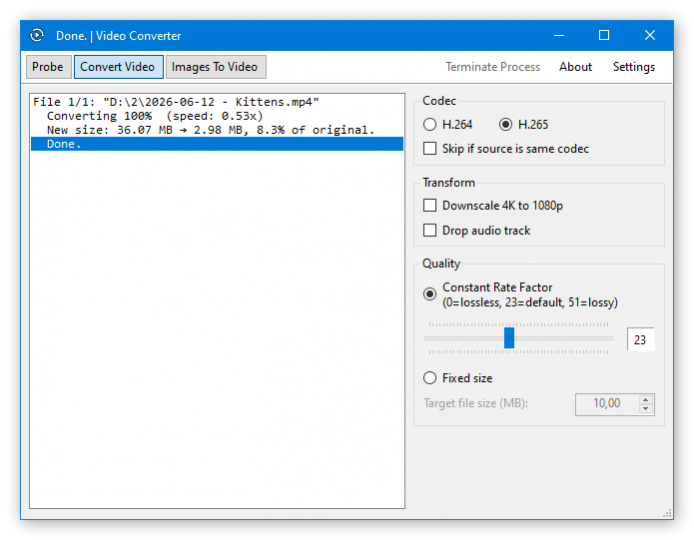
- Top-left corner contains the tabs for the main functions of the app.
- Left-side of the window is the output console, drag & drop your files here to start processing.
- Right-side of the window contains settings for the conversion.
"Probe" tab
This one uses ffprobe.exe to display every possible media and codecs information of a file. There’s no settings panel for this one.
"Convert Video" tab
This one uses ffmpeg.exe to convert video file to a different format. Use the settings panel on the right to set the output parameters, then drag & drop the video file or files to the output console on the left. Processing will start immediately when file is dropped.
- Codec
- Supported codecs are H.264 and H.265. I did not add hardware acceleration option because it produces lower quality result, which is unsuitable for archival, which would be the main purpose of this app.
- Transform
- Downscale 4K to 1080: Converts video to 1920×1080, if source is exactly 3840×2160 in size. Works both for landscape and portrait orientation.
- Drop audio track: Output will not have audio. Saves on size if audio was irrelevant or unwanted.
- Quality
- Constant Rate Factor: Maintains a consistent quality level for the video (with changing bitrate). This means the output size will be bigger if the video has more movement or high frequency details, but saves a lot on blurry and mostly still videos. Default value is 23, lower value means better quality and bigger file size.
- Fixed size: Automatically calculate quality level (at fixed bitrate) to generate video at the desired file size. This is good for chat clients where file transfer has a size limit. Result file size might not be an exact match, so for 10MB, might worth setting it to 9.5MB.
"Images To Video" tab
This one uses ffmpeg.exe to convert a sequence of images to a video. Use the settings panel on the right to set the output parameters, then drag & drop your images files all at once to the output console on the left. Files will be used in alphabetical order!
- Image Sequence Options
- Base frame rate: Frame rate of the output video (without frame generation).
- Generated frames: This will add generated frames in-between the input images for a higher frame rate. Having a base frame rate of 30 with 1 generated frame will create a video at 60 FPS. Warning: Frame generation is very slow! You can use the Terminate Process button on the toolbar if it takes way more time than expected.
- PNG background color: Input images can be PNG with transparency, but the output video cannot have an alpha channel, so this color will be used as background.
Toolbar (top-right)
- Terminate Process: This will terminate current conversion process. Output file will still be generated, but will be empty.
- Settings
- Verbose output: By default, output console will display a simplified output on the current process. Turn this on to see everything printed by
ffmpeg.exe. (this is for debugging only) - Add to Start Menu: Click to create Start Menu shortcut for the app. Might need to start app with Admin privileges first.
Windows 7 Support
Latest FFmpeg requires Windows 10 or newer to run. Alternatively you can use ffmpeg-release-essentials, which does support Windows 7 (https://www.gyan.dev/ffmpeg/builds/).
- Windows 10 vagy újabb
- .NET Runtime 10.0

Letöltés
 Windows (64 bit)
 Forráskód